Earn
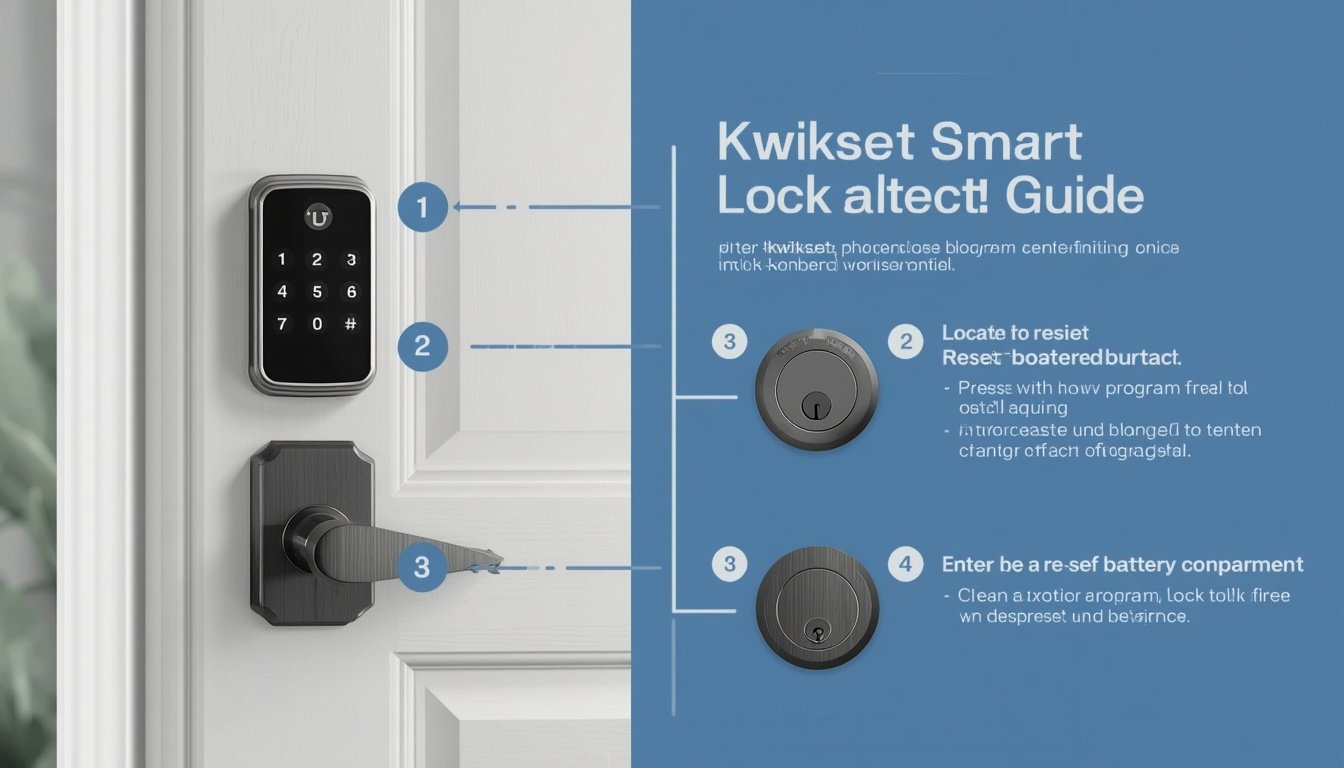
Kwikset smart lock we can help resolve certain connectivity problems, prepare a lock for a new owner, or restore its settings during troubleshooting. However, the correct procedure depends on the model and the type of reset you need. A network reset is not the same as a factory reset, and choosing the wrong procedure may remove settings you wanted to keep.
In this guide, you will learn what to check before resetting your lock, how Kwikset Halo, Aura, and Halo Touch reset procedures differ, what happens to access codes and connectivity settings, and what to do if your lock does not reconnect afterward. Always confirm the instructions for your exact model before pressing any reset buttons.
If you are still comparing different smart locks for your home, read our guide to the best smart locks in 2026 to explore different models and features before making a decision.
What Is a Kwikset Smart Lock Reset?
A Kwikset smart lock reset returns some or all of the lock’s settings to a previous configuration, depending on the reset procedure. Owners may consider resetting a lock when troubleshooting a new installation, changing ownership, or resolving certain app and connectivity issues.
There are different types of resets. A network reset focuses on connectivity-related information, while a factory reset is more comprehensive and restores additional lock settings. The exact effects depend on the lock model.
Before you begin, identify your lock’s model and read its official instructions. Do not assume that a procedure for a Kwikset Halo will work on every SmartCode, Powerbolt, or other Kwikset lock.
Factory Reset vs. Network Reset: What’s the Difference?
Understanding the difference between these procedures can help you avoid unnecessary changes.
What Does a Kwikset Factory Reset Do?
According to Kwikset’s official guidance for Halo, Aura, and Halo Touch locks, a factory reset deletes Bluetooth pairings, Wi-Fi network settings, user associations, access codes, and event history from the lock. It also resets lock settings, including handing.
Kwikset identifies changing lock ownership, losing a phone, and troubleshooting a new installation as situations in which a factory reset may be appropriate.
Keep in mind that access codes and event history may remain visible in the Kwikset app until the lock is deleted from the app’s home. Therefore, do not assume that information displayed in the app means the reset has failed.
Read the manufacturer’s instructions before proceeding: Kwikset Factory Reset Guide.
What Does a Kwikset Network Reset Do?
A network reset is intended to clear connectivity-related information on supported models. Kwikset’s instructions for Halo, Halo Touch, and Aura state that this process deletes Bluetooth pairings, Wi-Fi network settings, and user associations.
It is different from a factory reset because the official network-reset instructions do not describe it as resetting all the lock’s settings, including handing.
If your problem involves connecting a supported lock to a phone or network, check Kwikset’s official network-reset guidance first. Choose the procedure that matches your model and troubleshooting needs.
Official reference: Kwikset Network Reset Guide.
What Should You Do Before Resetting a Kwikset Smart Lock?
A little preparation can prevent avoidable problems during setup.
- Identify your exact model. Check the product label, packaging, documentation, or official product support page.
- Read the correct instructions. Confirm that the steps apply to your particular lock rather than another Kwikset model.
- Understand what will be deleted. A factory reset on supported Halo, Aura, and Halo Touch locks can remove access codes, user associations, event history, and pairing information.
- Prepare your phone and app. Make sure you can access the Kwikset app and follow the relevant setup instructions afterward.
- Check the battery. If the lock has low batteries or behaves inconsistently, consult the troubleshooting guidance for your model before starting.
- Consider ownership and access. If you are resetting a lock for a new owner, ensure that you are authorized to manage it and follow the manufacturer’s instructions for transferring or removing access.
For Halo, Aura, and Halo Touch factory resets, Kwikset instructs users to delete the lock from the home in the Kwikset app and remove it from the phone’s Bluetooth list using the “Forget Device” option before starting the reset.
Do not apply that preparation step automatically to every model; confirm the procedure in the appropriate manual.
How to Reset a Kwikset Smart Lock
The reset method depends on the lock. The following sections explain the official procedures covered by the manufacturer’s published guidance.
How to Factory Reset a Kwikset Halo, Aura, or Halo Touch
Kwikset provides a dedicated factory-reset guide for these lock families. Before following the model-specific reset sequence, the manufacturer says to:
- Open the Kwikset app.
- Delete the lock from the relevant home in the app.
- Open your phone’s Bluetooth settings.
- Find the lock in the paired-device list.
- Select “Forget Device” to remove that Bluetooth pairing.
- Return to Kwikset’s official factory-reset instructions and follow the steps for your exact lock.
Important: The page content available for this guide identifies the preparation requirements and the effects of a factory reset, but it does not provide the complete button-by-button sequence in the text reproduced here. Consult the live official instructions for the actual reset sequence rather than guessing the button presses or timing.
You can find the manufacturer’s instructions here: How to Perform a Factory Reset on a Kwikset Smart Lock.
How to Perform a Network Reset on Supported Kwikset Locks
Kwikset publishes the following network-reset sequence for Halo, Halo Touch, and Aura locks. Confirm that your particular model uses this procedure before beginning.
- Press and hold the A button for 10 seconds. You may hear a short beep and see an amber LED. Kwikset notes that a blue LED and beep may occur after three seconds; continue holding the button until the specified network-reset indication appears.
- Release the A button when the LED blinks amber, indicating network-reset mode.
- Press and release the Program button within 10 seconds of releasing A to confirm the network reset.
- If successful, the lock should give one long beep and show a green LED. If it gives five rapid beeps and a blinking red LED, Kwikset says the attempt was unsuccessful; repeat the procedure according to its instructions.
- Remove the battery pack, wait five seconds, and reinstall it to power-cycle the lock.
- Follow Kwikset’s app instructions to remove the lock and add it again.
- Remove the old Bluetooth entry from your phone if required, using the device identification details shown in the app.
Kwikset’s published instructions also describe removing the lock through Home Settings and Manage Home Locks, then selecting the option to add a lock again. App screens may change, so use the current instructions in the app if the menu labels differ.
Read the complete instructions here: Official Kwikset Network Reset Steps.
Safety note: Do not use these button instructions for a lock that is not listed in the manufacturer’s guide. Different models may use different controls and reset sequences.
What Happens to Your Access Codes After a Reset?
This is one of the most important questions to consider before resetting a smart lock.
For a factory reset on supported Halo, Aura, and Halo Touch locks, Kwikset says access codes, user associations, Bluetooth pairings, Wi-Fi settings, and event history are deleted from the lock. You may need to configure the lock again and restore the access arrangements you want.
The official network-reset instructions describe deleting Bluetooth pairings, Wi-Fi settings, and user associations. They do not describe the network reset as having the same full list of effects as the factory reset.
Because the consequences differ, choose the reset type carefully. If other household members, guests, or service providers rely on access codes, make a plan for restoring access after the reset.
How Do You Reconnect a Kwikset Smart Lock After Resetting It?
After a reset, a supported lock may need to be added to the Kwikset app again and paired with your phone. Network settings may also need to be configured again.
Use these general checks:
- Confirm that the lock has power and its batteries are installed correctly.
- Follow the app’s current instructions for adding a lock.
- Make sure Bluetooth is enabled if the setup process requires it.
- Follow the official Wi-Fi setup instructions for models that support Wi-Fi.
- Remove an obsolete Bluetooth pairing if Kwikset instructs you to do so.
- Complete the setup process for the exact model and verify that the lock responds as expected.
If the app cannot find the lock, do not immediately repeat a factory reset. Check the official troubleshooting guidance for your model first.
Why Is My Kwikset Smart Lock Still Not Working After a Reset?
A reset does not automatically resolve every lock problem. If your Kwikset smart lock still does not work, consider these possibilities.
The Lock Is Not Connecting to Bluetooth
Check whether Bluetooth is enabled on your phone and whether an old pairing is interfering with setup. Follow the manufacturer’s instructions for forgetting the old device and pairing the lock again.
The Lock Is Not Connecting to Wi-Fi
First confirm that your model supports Wi-Fi. Then review the official setup requirements for your lock and router. A network reset may remove saved Wi-Fi settings, so you may need to configure the network again.
The Lock Does Not Respond to the Reset Sequence
Check the battery condition and confirm that you are pressing the correct button for the correct duration. LED colors, beeps, and button sequences can vary between models. Do not guess if the expected indicator does not appear.
The Lock Still Cannot Be Added to the App
Verify that the lock has been removed from the app and Bluetooth list if the manufacturer’s instructions require it. Then follow the current app setup process. If the problem continues, use Kwikset’s official support resources.
You can start with the Kwikset Support Center to find the correct documentation for your product.
Frequently Asked Questions
How do I reset my Kwikset smart lock?
The procedure depends on your model and whether you need a factory reset or a network reset. Identify your lock first, then follow the matching instructions on Kwikset’s official support website.
Is a factory reset the same as a network reset?
No. For supported Halo, Aura, and Halo Touch locks, the factory reset removes a broader set of information and resets additional lock settings. The network reset focuses on Bluetooth pairings, Wi-Fi network settings, and user associations, according to Kwikset’s published guidance.
Will a factory reset delete my Kwikset access codes?
Kwikset says that a factory reset on Halo, Aura, and Halo Touch locks deletes access codes from the lock. The app may continue to display codes or event history until the lock is deleted from the app’s home.
Can I reset any Kwikset lock using the A button?
No. The A-button network-reset procedure discussed in this guide applies to the supported Halo, Halo Touch, and Aura models described by Kwikset. Other lock families may use different procedures.
What should I do if my Kwikset lock will not reconnect?
Check the batteries, verify the model’s setup requirements, remove old pairings when instructed, and follow the official app setup steps. If the issue continues, consult Kwikset support rather than repeatedly resetting the lock.
Where can I find the correct reset instructions for my model?
Start with the official Kwikset factory-reset support page and select the instructions that match your lock family. You can also search the manufacturer’s support center using the model name.
Final Thoughts
Resetting a Kwikset smart lock can be useful for certain setup, ownership, and connectivity problems, but the correct method matters. A factory reset and a network reset have different effects, and the steps for one lock may not work for another.
Before proceeding, identify your model, understand which information will be removed, and consult the matching Kwikset instructions. After the reset, follow the official setup process and confirm that your lock works correctly.
For the most reliable result, use the manufacturer’s documentation as your primary reference and contact Kwikset support if the lock does not behave as described.